
Collections
How collection tasks are determined
Updated November 18, 2026
Thor creates collection tasks for you each morning. A task is either an email or a call. Which tasks appear depends on three things: the playbook assigned to the customer, how many days past due the customer's account is, and who the customer's assigned user is.
This article explains how those pieces fit together. To change the playbook steps themselves, see How to modify collection playbooks.
Step 1: Each customer is assigned a playbook
A playbook is a list of steps. Each step is an email or a call, set to happen on a certain number of days past due. For example, "send this email at 5 days past due" or "make this call at 15 days past due."
Every customer has one playbook assigned. You can set it on the customer, or change many customers at once with a spreadsheet. The steps are in How to change collection playbook assignments.
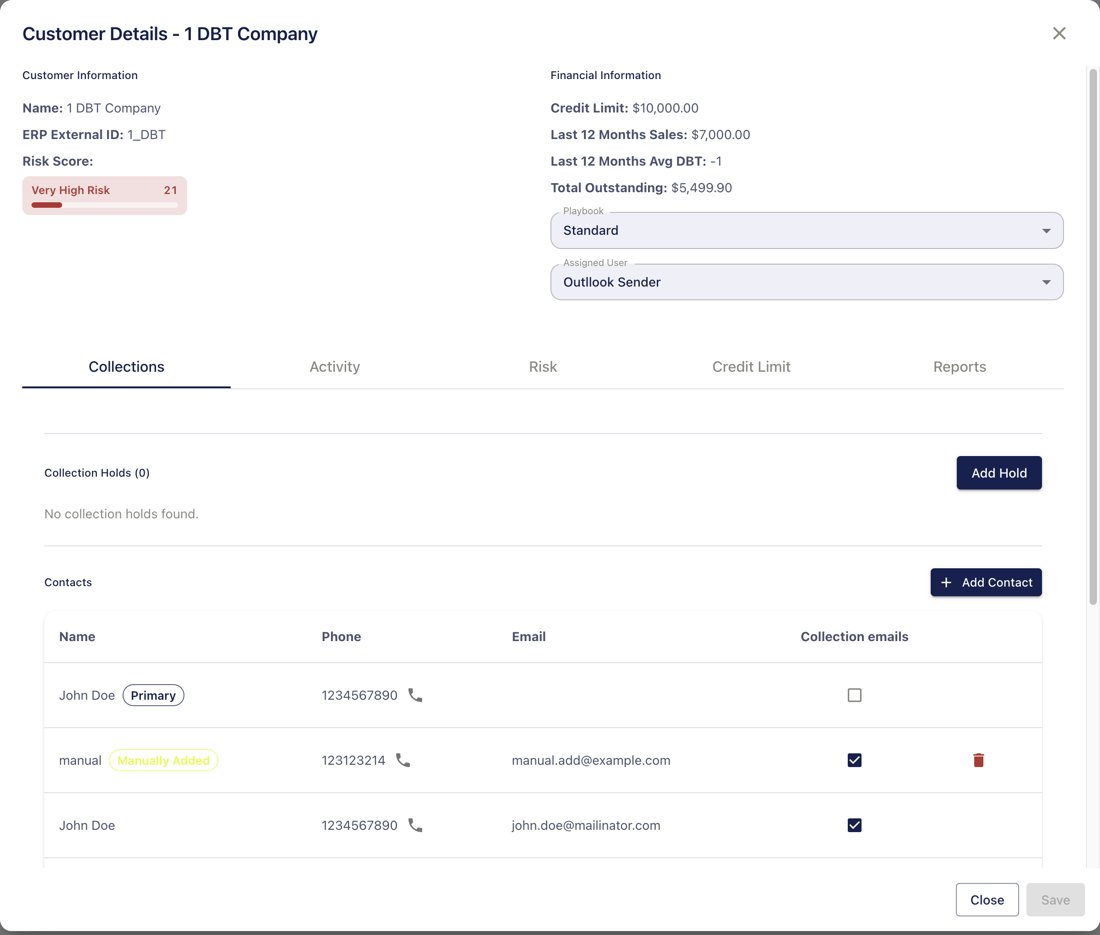
If a customer has no playbook, Thor does not create any tasks for them. To keep a customer on a playbook but stop their emails, see How to stop collections emails for an account.
Step 2: Thor checks each account every morning
Each morning, Thor looks at every customer that has a playbook and works out how many days past due the account is. Thor does this on weekdays. It does not create tasks on weekends.
Thor measures the account by its oldest unpaid invoice, with two exceptions. Thor skips an invoice that is:
- Disputed, or
- Covered by an active promise to pay.
Thor uses the next oldest unpaid invoice instead. You can record a promise or dispute on the customer. See How to record a promise, dispute, or collection hold.
Days past due are counted from that invoice's due date. If the due date on the invoice does not match the customer's current terms, see Why a collection task used different terms than the customer file.
Step 3: Thor compares days past due to the playbook
Next, Thor compares the account's days past due to the steps on the customer's playbook.
If the days past due exactly match a step, Thor creates a task for that step. If the step is an email, the task is an email. If the step is a call, the task is a call.
If the account's days past due do not match any step that day, Thor does not create a task. The next day, the account is one day older, and Thor checks again.
For example, a playbook has an email at 5 days past due and a call at 10 days past due:
- On the day the oldest eligible invoice is 5 days past due, Thor creates the email.
- On the day it is 10 days past due, Thor creates the call.
- On the days in between, nothing is created.
Because Thor does not create tasks on weekends, a step that lands on a Saturday or Sunday does not run.
If your organization has an Automated Email Start Date set in Settings → Collections, Thor creates no collection tasks before that date. See How to stop collections emails for an account for details.
Who sends the email
Thor sends a collection email automatically from the customer's assigned user. The email goes out from that user's connected inbox (Outlook, Gmail, or Thor Mailbox) and includes that user's email signature.
If you have set a Business Timezone in Settings → Collections, automatic emails wait until 8:00 AM in that timezone before they send. See How to assign users to customers to choose the user for one customer or many.
Call tasks do not send anything. They appear for the assigned user on the Collections page so the user can make the call.
When an email does not send automatically
Thor still creates the email task, but it does not send it. The task stays in Collections → Tasks with a status of Due, so someone on your team can open it, review it, and click Send Email, or mark it as skipped.
An email is held for manual sending when any of these is true:
- The assigned user does not have an email account connected. Connect Gmail, Outlook, or Thor Mailbox for that user in Settings → Users.
- The customer has no assigned user. Assign one on the customer.
- The customer has no contact with an email address that is marked for collection emails. Open the customer, go to the Collections tab, and check Collection emails next to the contacts who should receive them.
If none of these apply and emails still do not send automatically, contact Thor support.
See the next scheduled task for a customer
To see what Thor plans to create next for a customer:
- Open Collections → Customers and click the customer. You can also open a customer from Monitoring.
- Click the Activity tab.
- Look at the Next Task card at the top of the activity list.
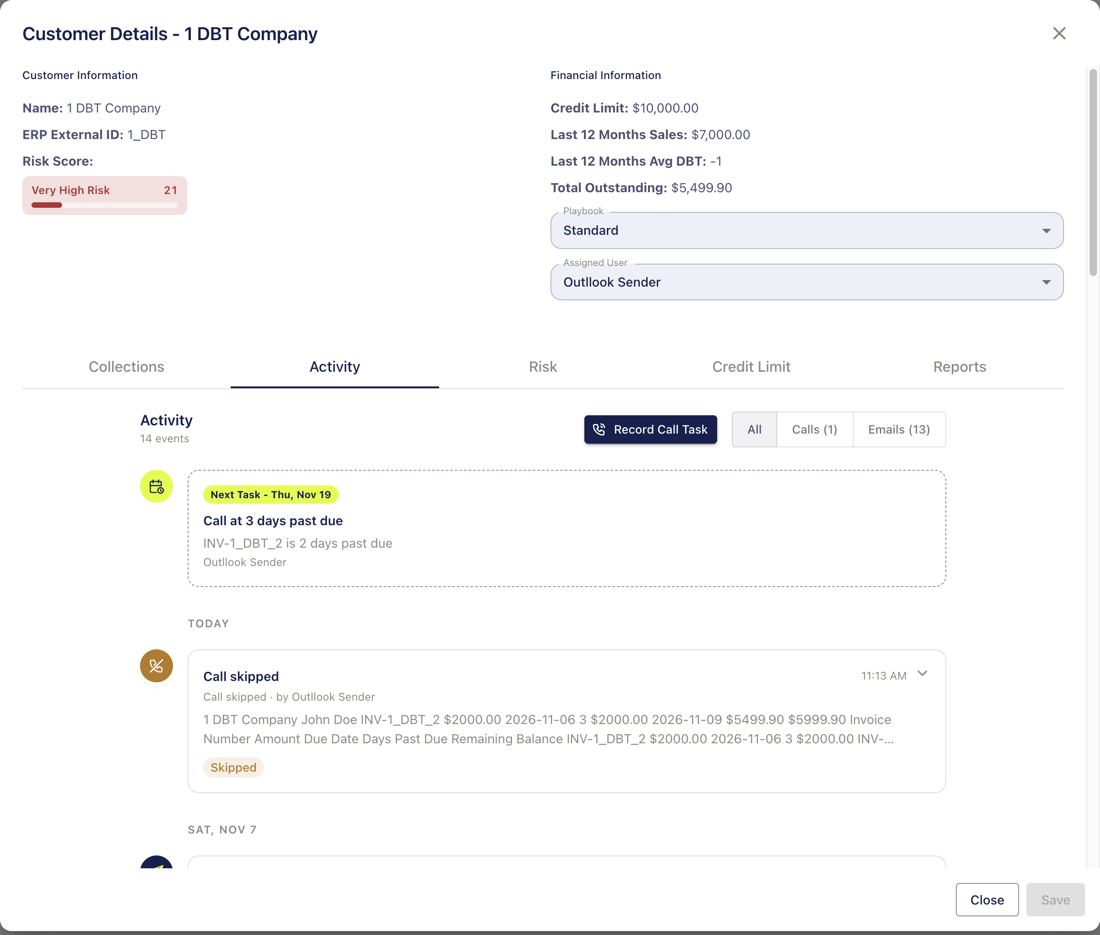
The card shows the next step, the day it is scheduled, the invoice that is setting the days past due, and the user it is assigned to.
If the card says No collection task scheduled, the message below it tells you why. The most common reasons are:
- The customer has no playbook.
- The customer has no eligible invoice. The balance may be current, or every unpaid invoice is disputed or has a promise to pay.
- The account is past the last step on the playbook.