
All help articles
Collections
How to stop collections emails for an account
Updated October 8, 2026
One customer
To take a customer off automatic collection emails, assign them the No Collection Contact playbook.
- Open Collections → Customers. You can also open the customer from Monitoring.
- Click the customer row to open Customer Details.
- In Financial Information, set Playbook to No Collection Contact.
- Click Save.
A group of customers
Follow How to change collection playbook assignments and set the Playbook column to No Collection Contact for each account you want to take off automatic collection emails.
Every customer
To pause collection emails and call tasks for every customer, set the Automated Email Start Date in the future.
- Open Settings → Collections.
- Choose a future date in Start Date, then click Save Changes.
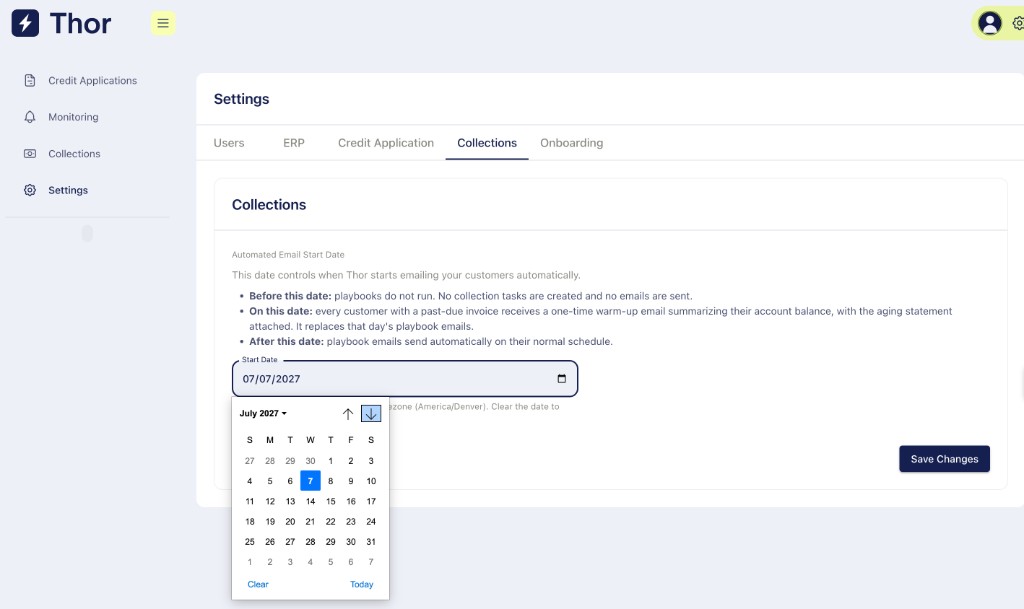
Collection emails and call task creation stay paused until that date.
- Before this date: playbooks do not run. No collection tasks are created and no emails are sent.
- On this date: every customer with a past-due invoice receives a one-time warm-up email summarizing their account balance, with the aging statement attached. It replaces that day's playbook emails.
- After this date: playbook emails send on their normal schedule, based on each customer's assigned playbook.