
Credit Applications
How to track and resend credit terms documents
Updated November 18, 2026
When a customer submits a credit application and enters the email addresses of the people who will sign credit terms, Thor sends them the credit terms documents for signature through DocuSeal. Every document sent for an application is tracked on that application's Documents tab, including when it was sent and whether it has been signed.
See what has been sent for a credit application
- Click Credit Applications in the left menu.
- Click the credit application.
- Open the Documents tab.
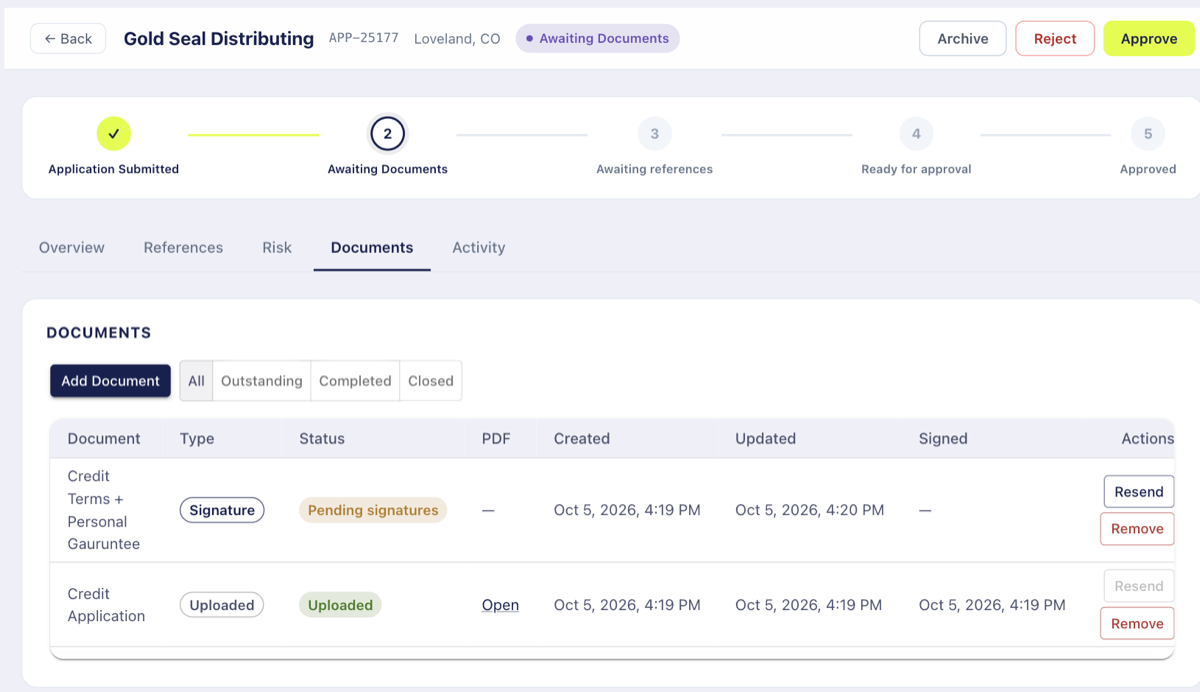
Each row is a document, with these columns:
- Type: Signature for documents sent out for e-signature, Uploaded for documents added to the application directly.
- Status: where the document stands, such as Pending signatures or Complete.
- PDF: an Open link appears once a PDF is available.
- Created: when the signature request was created. This is the moment the customer entered the email addresses of the people responsible for signing credit terms. The signature email is delivered to them right away, so this is also the date the documents were sent.
- Updated: the last time the document changed, such as a signer completing it.
- Signed: the date and time the document was signed by all parties. It stays blank (—) until everyone has signed.
Use the Outstanding, Completed, and Closed buttons above the table to filter the list.
Find every application that is still waiting on documents
A credit application stays in Awaiting Documents status until all of its documents are signed. To see all of the applications that are waiting:
- Click Credit Applications.
- Click the Awaiting Documents tab above the list.
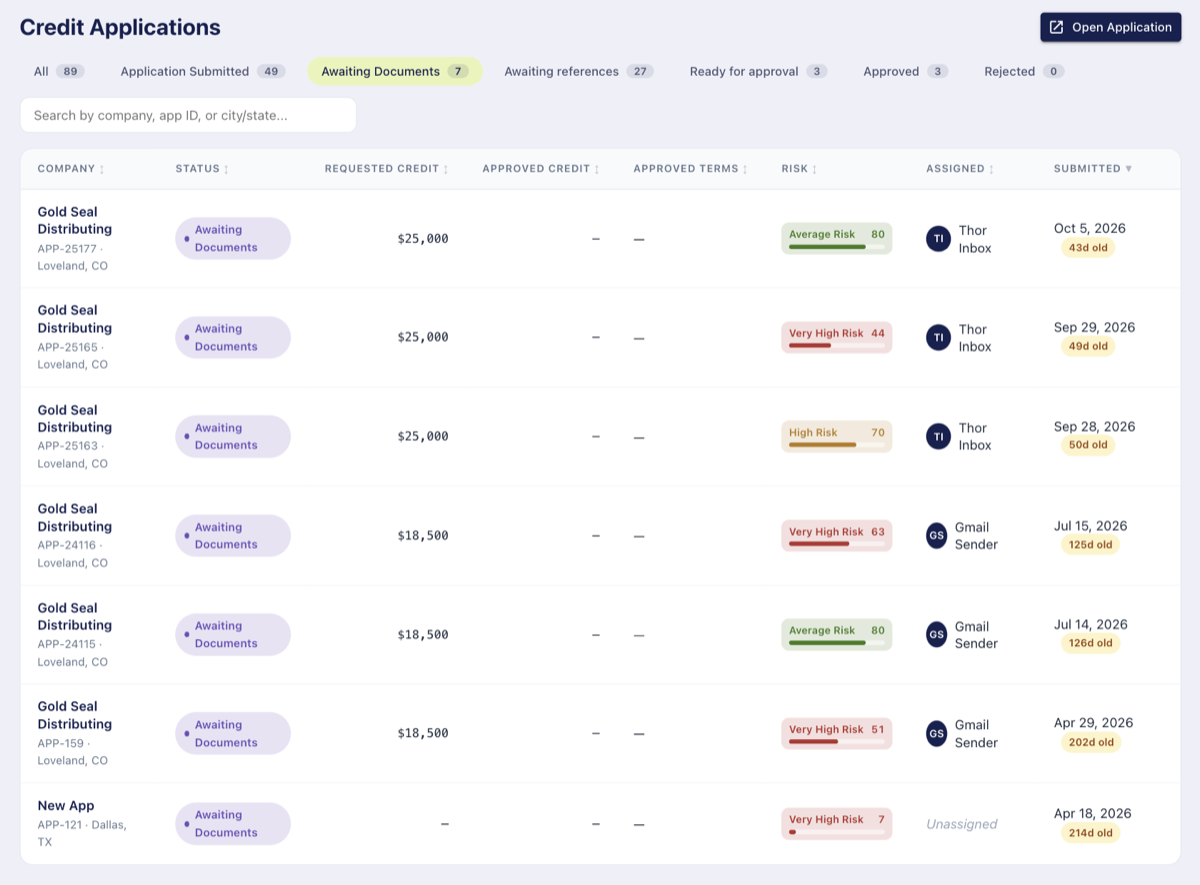
Click any application in the list to open its Documents tab and see when the documents were sent and who is still outstanding.
Once every document is complete, the application moves on to Awaiting references and then Ready for approval. If a document is declined or expires, the application stays in Awaiting Documents until it is replaced and signed.
Reminders
If a signer hasn't signed, Thor automatically sends them a reminder email once a day for 3 days: 1 day, 2 days, and 3 days after the original request. Reminders stop as soon as the document is signed by everyone.
You can also send a reminder yourself at any time:
- Open the application's Documents tab.
- Find the document with the Pending signatures status.
- Click Resend in the Actions column.
Thor sends the signature email again to the signers who haven't signed. This is in addition to the automatic reminders. Resend is only available while a document is waiting on signatures. It is greyed out once the document is complete.
Signed copies
Each time someone signs, they are automatically emailed a copy of the signed document so they have it for their records.
Open the fully signed document
When all parties have signed, the document's status changes to Complete, the Signed column fills in, and the signed PDF is saved to the application. To view it, open the Documents tab and click Open in the PDF column.