
Credit Applications
How to import a paper credit application
Updated November 24, 2026
Got a credit application filled out by hand? Upload a scan or phone photos of it and Thor reads the handwriting for you. You check what Thor read, then import it. From there it's a normal credit application, the same as one submitted online: same statuses, reference emails, scoring and notifications.
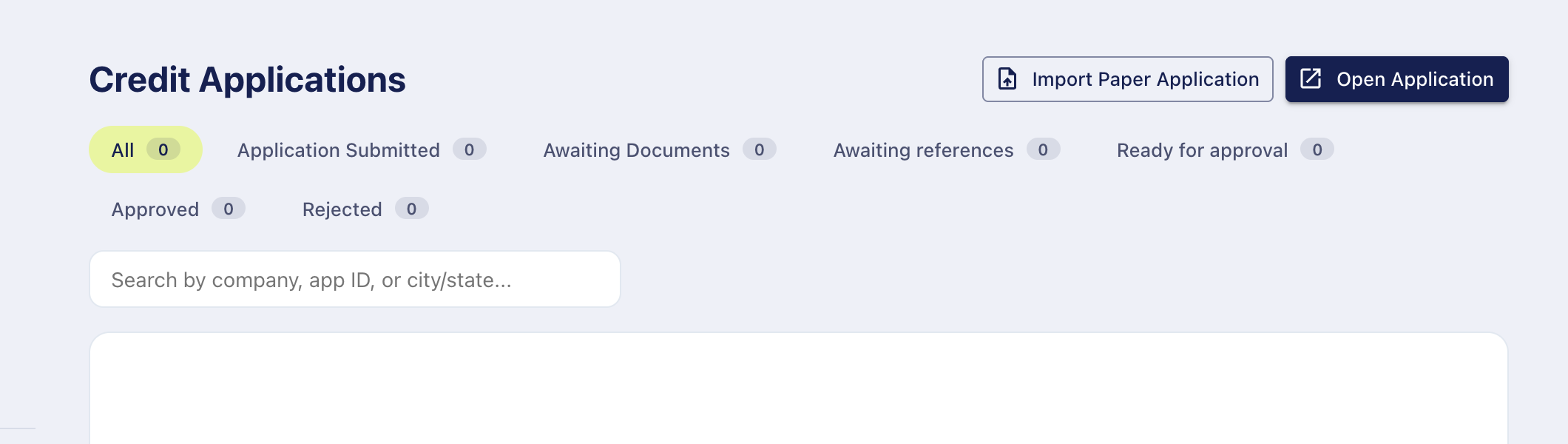
You'll find it on the Credit Applications page: click Import Paper Application, next to Open Application. Anyone who can see Credit Applications can import.
The one rule that saves the most trouble: always print the blank form from Thor, and print it fresh. Thor only imports its own current form, so an old copy from a drawer or another company's form will be turned away. More on that below.
Before you start: print the form from Thor
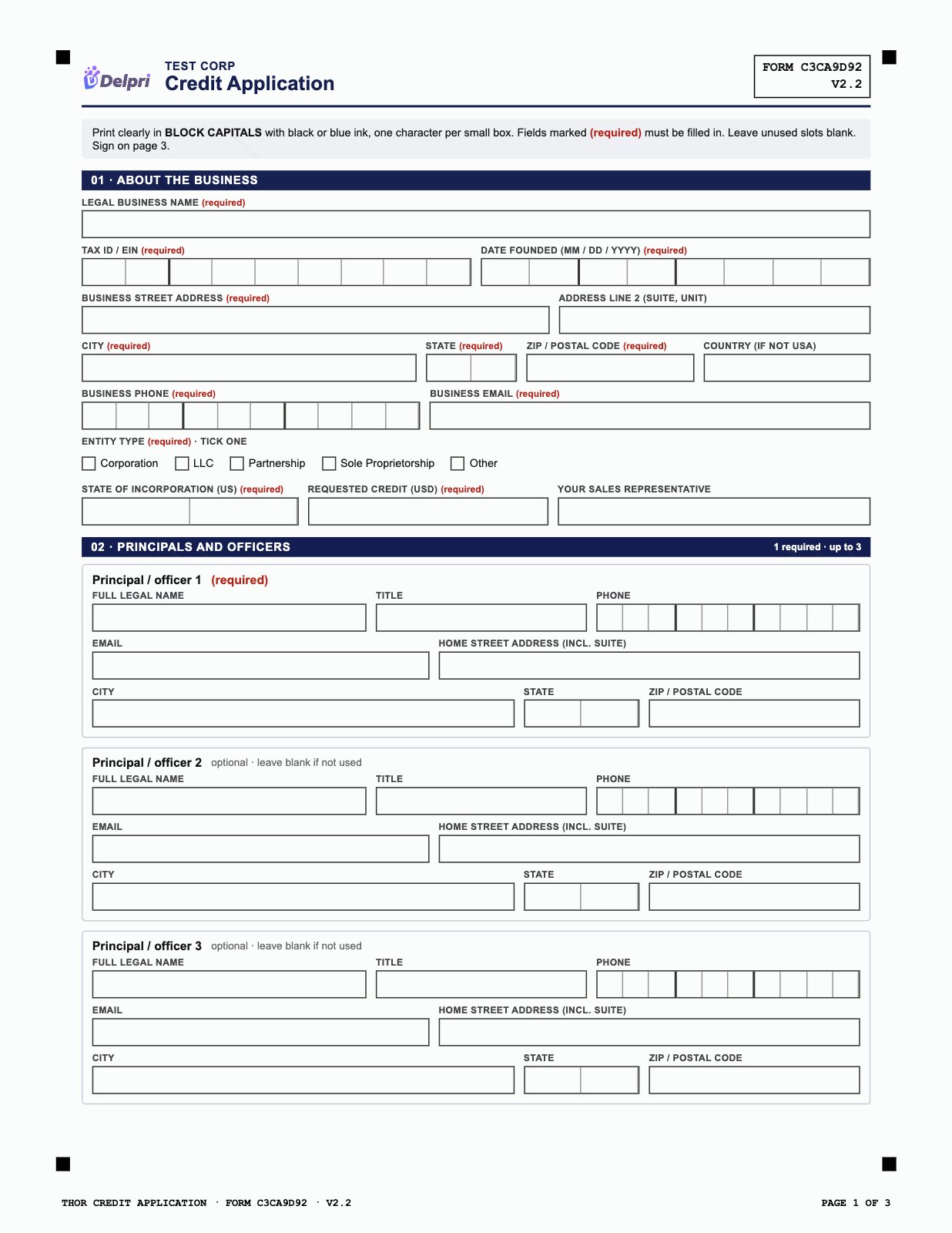
Thor can only read its own paper application, printed for your company. Every page carries a footer like FORM C3CA9D92 · V2.2:
- The version (V2.2) changes when your credit application settings change, for example the minimum number of trade references.
- Changes to the credit application on occasion, Thor will add or reformat standard credit application fields
Thor rejects a form with another company's code or an older version, so the applicant would have to fill it out again. To avoid that:
- Print from Thor each time instead of photocopying a stack. Download it from the first step of the import (below), or keep the PDF and re-download it whenever settings change.
- Throw away old printed copies when someone changes the credit application settings.
- Print all 3 pages and give the applicant every page. Thor needs all three to import.
- Don't retype or rearrange the form. The footer, the corner squares and the box layout are what let Thor find each field.
The form is 3 pages:
| Page | What's on it |
|---|---|
| 1 | Business details, and up to 3 principals (the first is required) |
| 2 | Accounts payable contact (required) and one bank reference (optional; if used, every field including fax is required) |
| 3 | Trade references (your company's minimum, up to 3), then the signature |
Step 1: Start
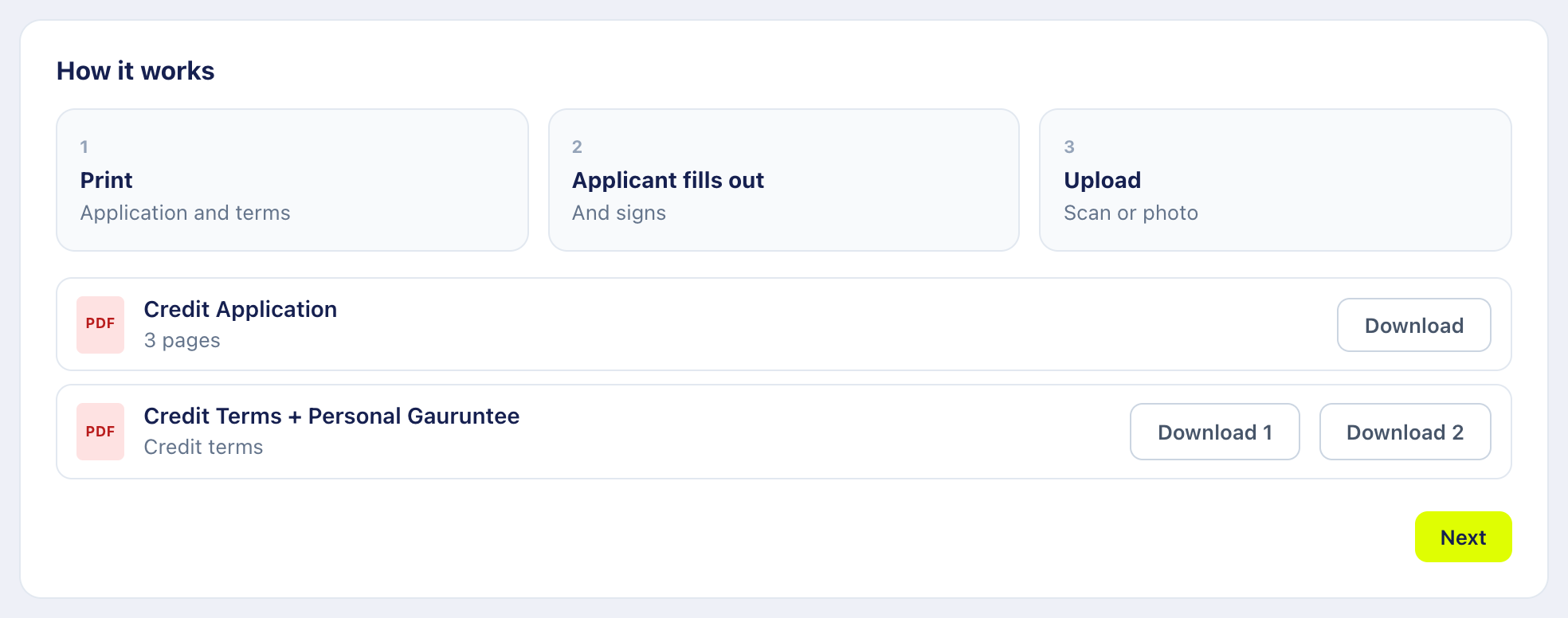
The first screen has the blank forms to hand to your applicant:
- Credit Application: the 3-page form, printed for your company with the current version.
- Credit terms: your credit terms documents, if your company uses them, one download each. The applicant signs these too.
Already have the filled-in form? Click Next.
Nothing is saved until you click Import at the end, so you can Cancel at any point without creating anything.
Step 2: Upload all 3 pages
Add the completed pages any of these ways:
- Drag and drop files onto the box, or click Browse Files.
- Take Photos on a phone or tablet opens the camera. Take one photo per page.
- Files: PDF, JPG, PNG or HEIC (iPhone photos), up to 25 MB each and 20 files at a time. One PDF with all 3 pages works, and so does one file per page.
- Order doesn't matter. Thor reads the page number on each page.
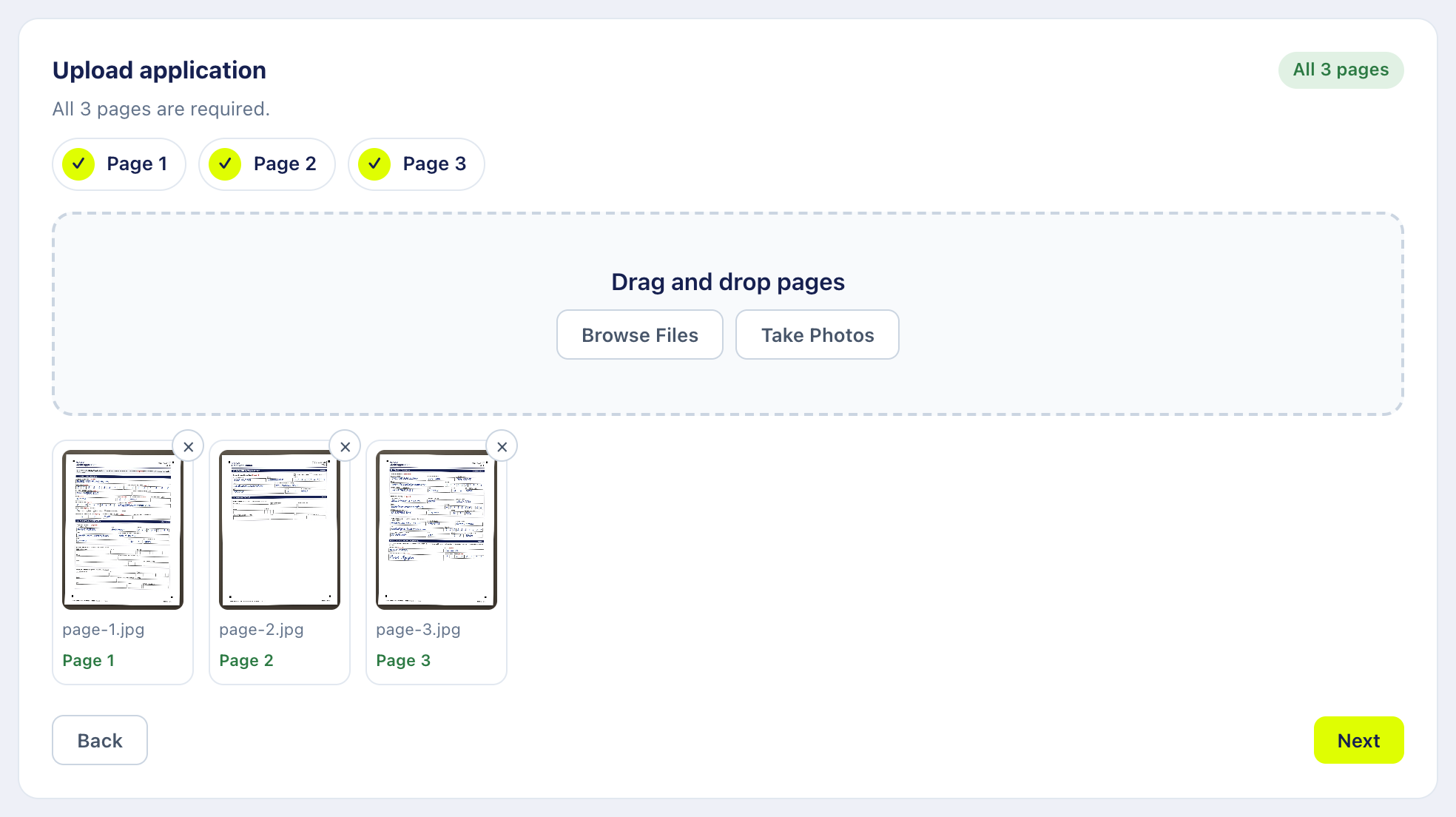
As each file is added, Thor checks its page number and form code. That takes about a second a page. Each file's label shows the result, and the chips at the top show which pages you have:
| You see | What it means | What to do |
|---|---|---|
| Page 1 (green) | Thor found that page of your current form | Nothing |
| Page 2 missing | No file is page 2 yet | Add a photo or scan of page 2 |
| Page 2 · duplicate | The same page was added twice | Remove one copy |
| Another company's form | The form was printed from a different company's Thor account | Remove it, and have the applicant fill out your form |
| Old form version | Printed before your settings changed | Remove it, and have the applicant fill out a freshly printed form |
| Page number not found | Thor couldn't see the page footer | Retake the photo with the whole page in view, bottom edge included |
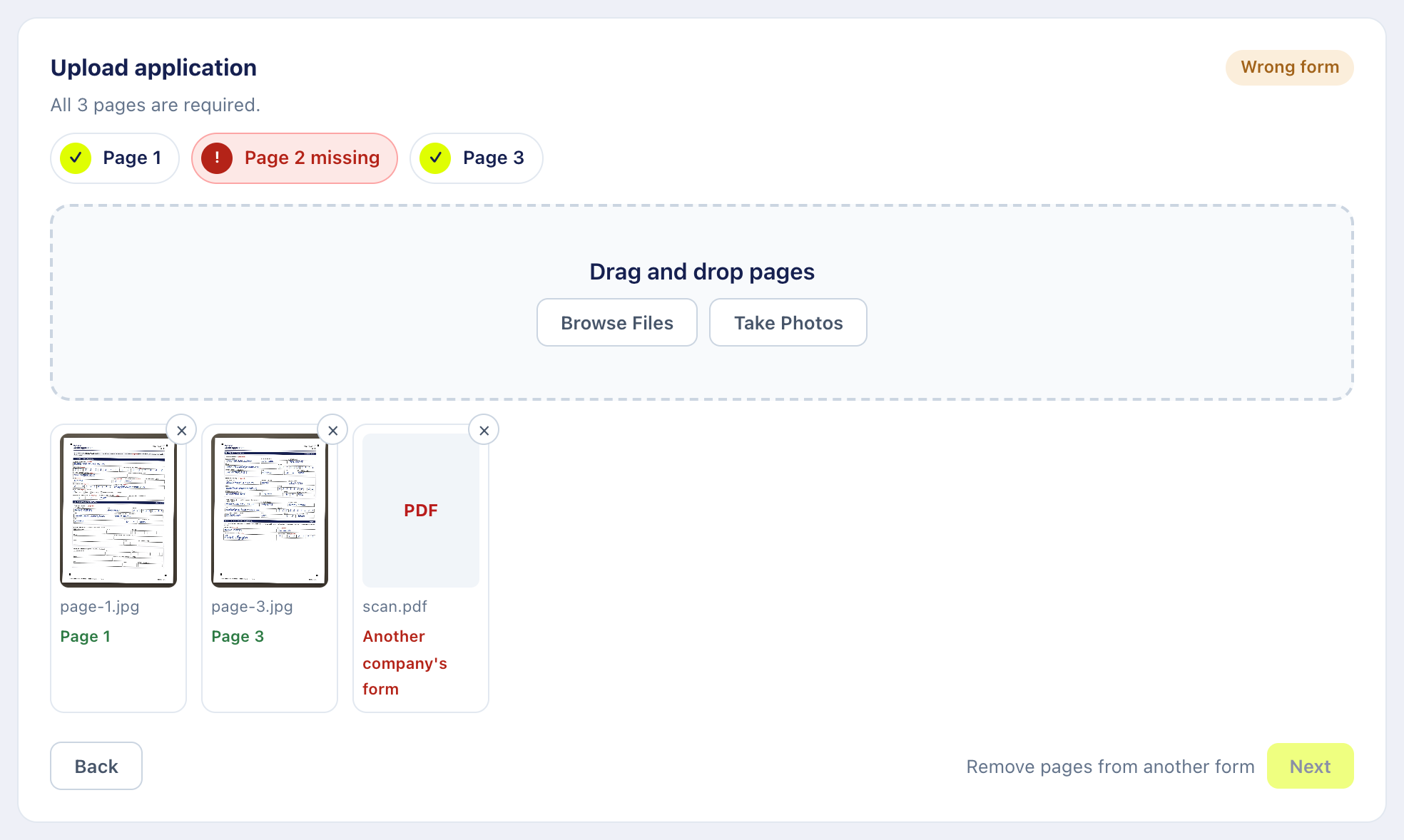
Next stays off until all 3 pages are there and nothing is from the wrong form. The hint beside it says what's missing.
Step 3: Review what Thor read
After you click Next, Thor reads the handwriting, usually in under a minute. Then you get the review screen: the scan on the left, the fields on the right, one section at a time. Treat it like proofreading. You're the final check on what goes into Thor.
Two kinds of fields need you:
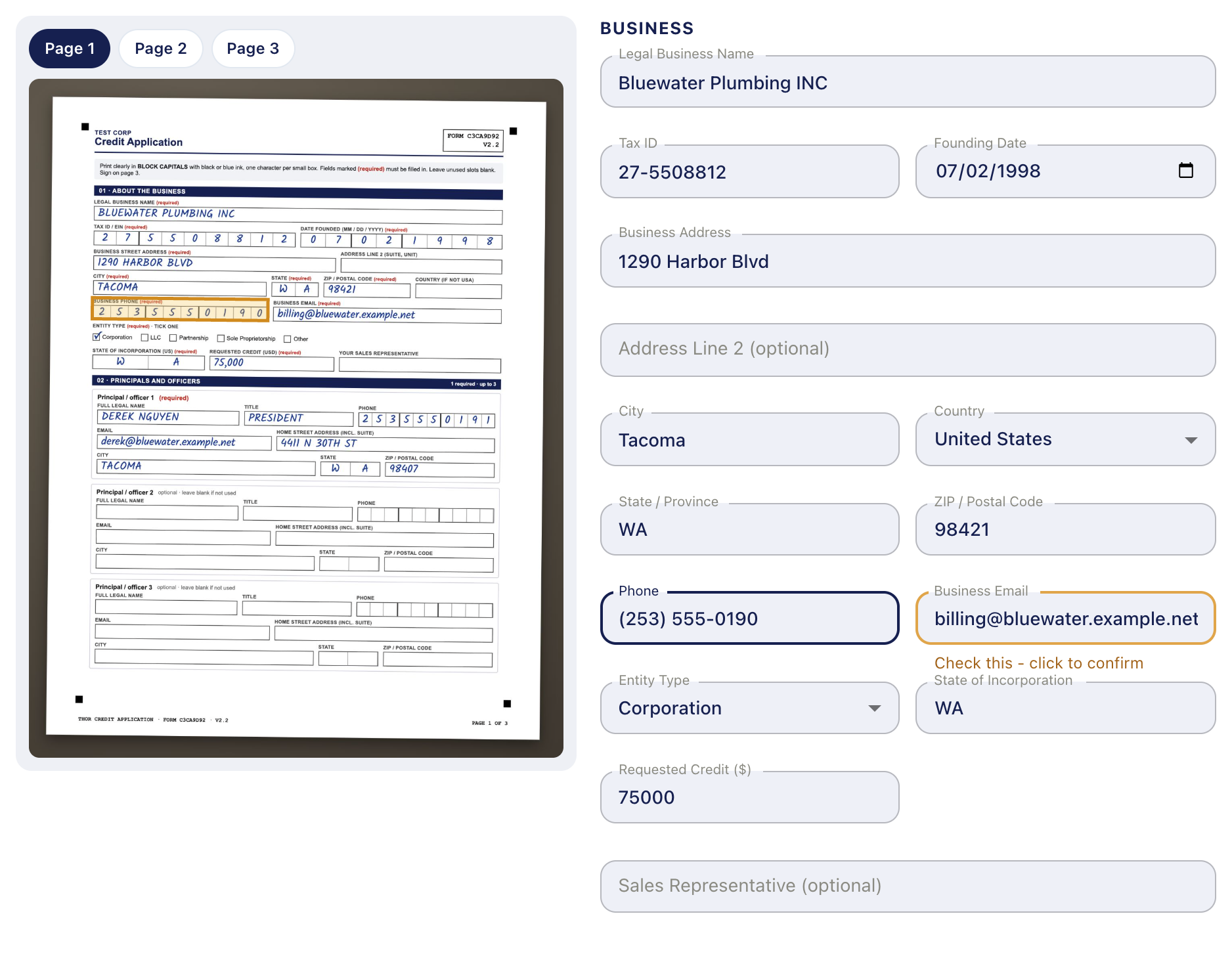
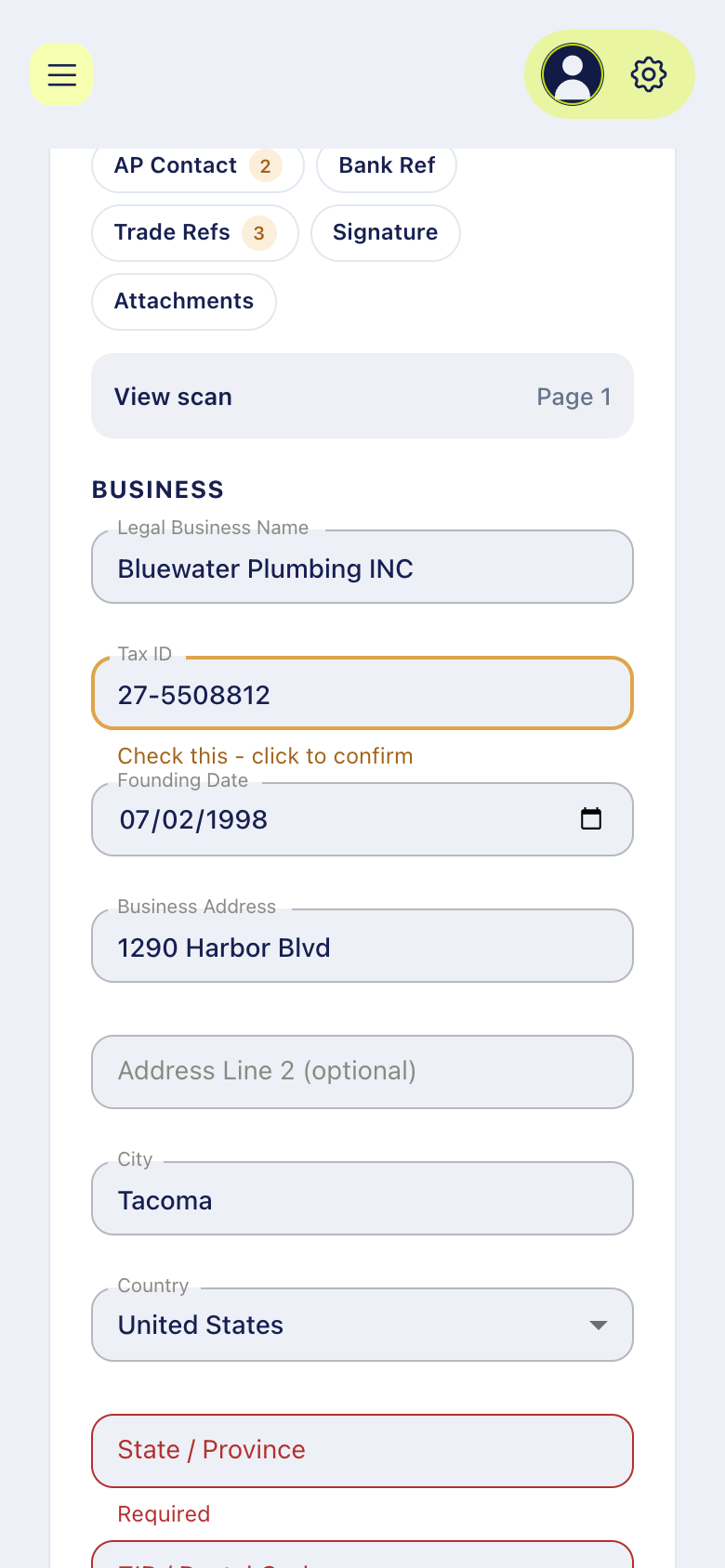
- Check this (amber): Thor read something but wants you to confirm it. It flags handwriting it wasn't sure of, values whose format looks wrong (a 9-digit phone, a 4-digit ZIP) and email domains that can't receive mail. Click into the field to confirm it, or correct it.
- Required (red): the field is empty but needed, the same as on the online application. Fill it in, which may mean a quick call to the applicant.
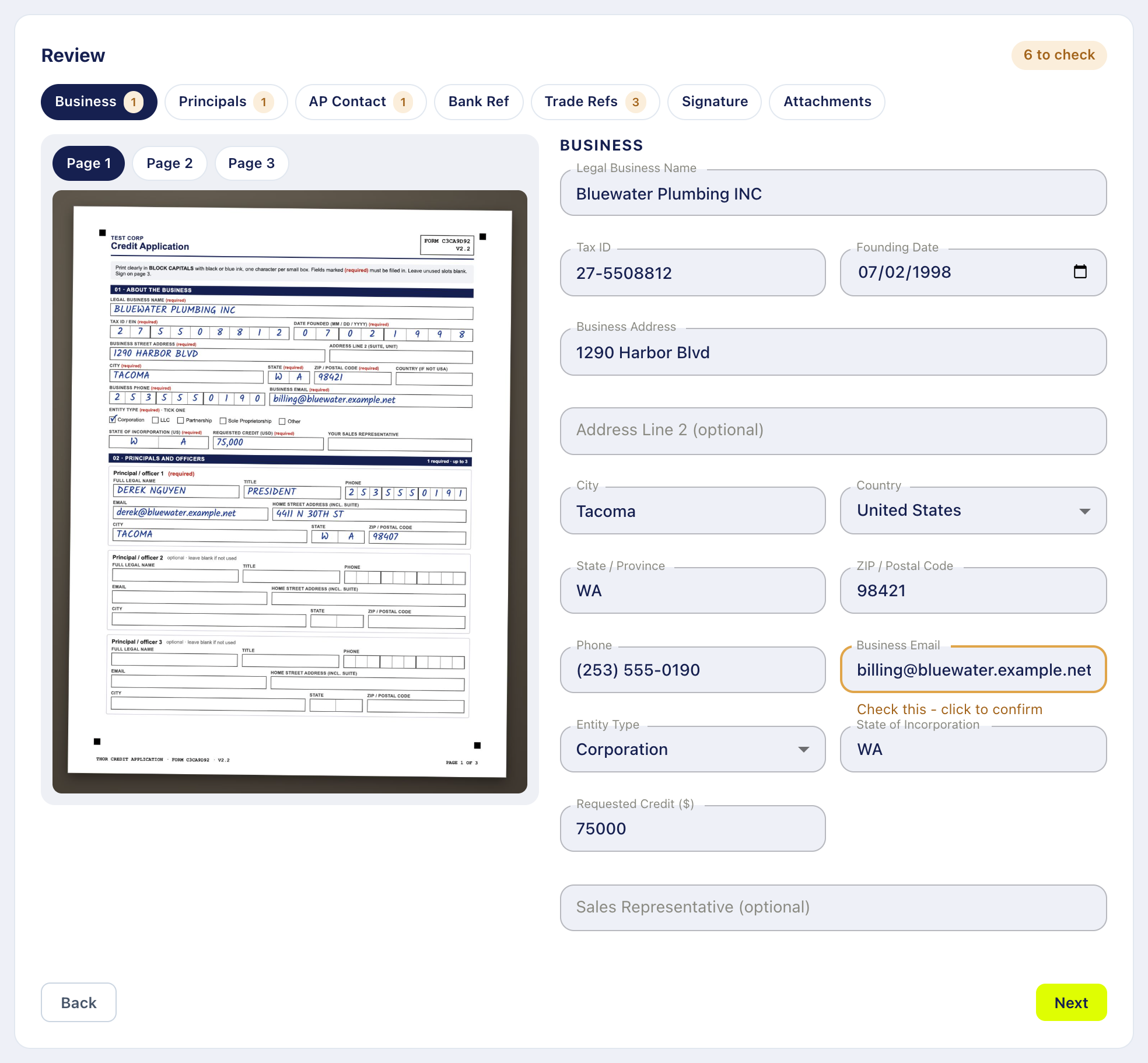
The section chips at the top (Business, Principals, AP Contact and so on) show a count of fields left in each. The count in the top right shows the total. Next takes you on once every red field is filled and every amber field has been opened. Click it earlier and Thor jumps to the first section that still needs you.
Click a field to find it on the scan. The scan jumps to that field's page and outlines its box, so you can compare at a glance. On a phone photo, the outline relies on the four black squares in the page corners. If one is cut off or covered, the scan still shows the right page, just without the outline.
Other things you may see on this screen:
- Did you mean …? under an email: Thor spotted a likely misread, such as 1 for l or 0 for o. Click the suggestion to use it. Check every email carefully. Reference requests go to these addresses as soon as you import.
- An empty block marked Check this: the applicant wrote in that block (a second principal, say) but Thor couldn't read it. Type it in from the scan, or click Remove if it shouldn't be there.
- A link to an existing customer: another application has the same Tax ID, or the same name and ZIP. Open it to check for a duplicate. You can still import.
- Signed by an authorized principal: tick this only if the signature box on page 3 is signed. You can't import an unsigned application.
- Attachments: optional supporting documents, such as a W-9 or financial statements. Up to 30 files, 25 MB each.
On a phone, the scan starts collapsed behind View scan because the paper is usually right in front of you. Tap it to open the scan.
Step 4: Credit terms
This step only appears if your company uses credit terms documents. Choose one of two tabs:
- Upload Completed Document: the applicant already signed the printed terms. Upload a scan or photo of each one; every document needs a file.
- Request Signature: the applicant hasn't signed yet. Thor emails them for an e-signature when you import. The signer's name and email start out as Principal 1's; change them if someone else signs.
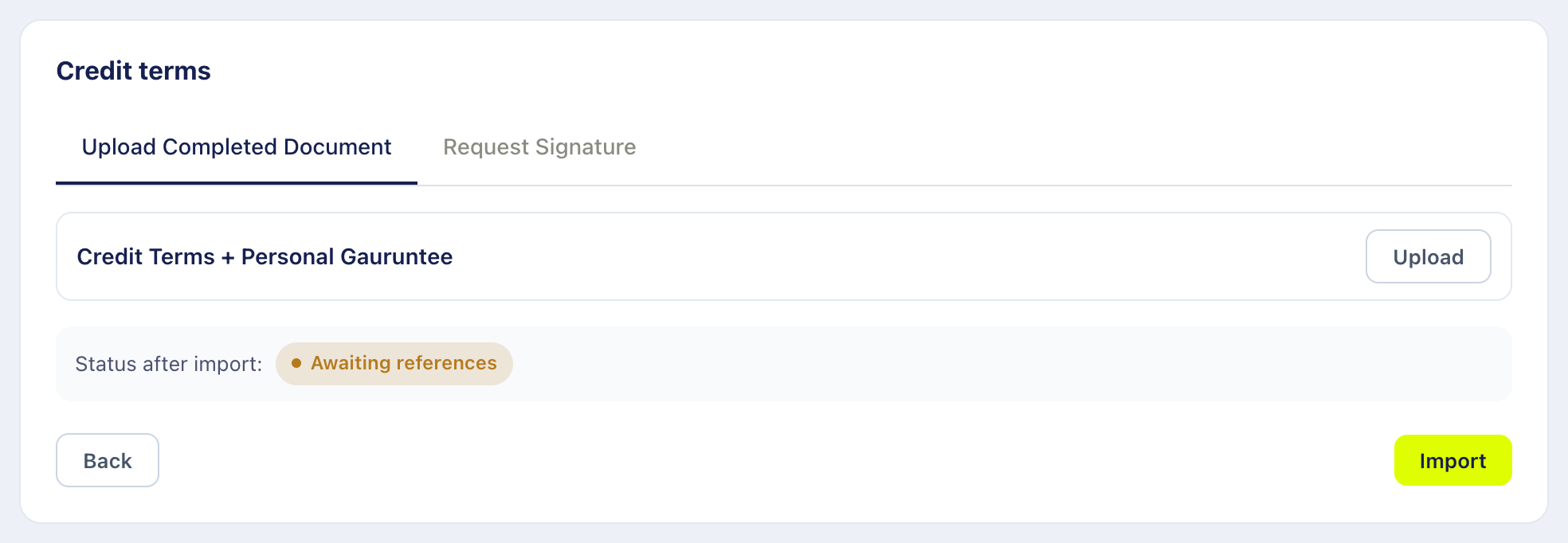
The line at the bottom shows the status the application will get:
| Credit terms | Status after import |
|---|---|
| Signed documents uploaded | Awaiting References (or Ready for Approval if no references are pending) |
| Signature requested | Awaiting Documents until the terms are signed |
Click Import when you're ready.
Step 5: Done
Once you click Import, the application is in Thor and everything runs as it does for an online application:
- Reference requests go out right away to the references on the form, from your credit application owner's mailbox.
- Your credit application owner is assigned and gets the usual new-application notification.
- The credit recommendation may take a few minutes to appear.
- Its documents include the standard Credit Application summary, the original scans as Credit Application – Paper Original, your credit terms and any attachments.
- A PAPER tag marks it in the Credit Applications list, so you can tell imported applications from online ones.
From the Done screen, click View Application to open it, or Import Another to start the next one.
Tips for good photos and scans
A clean photo means fewer fields to check. Before you snap:
- Get the whole page in the frame, including all four black corner squares and the footer along the bottom edge.
- One page per photo. Don't let the next page creep into the shot.
- Lay the page flat on a darker surface, in even light, with no shadow from your phone or hand.
- Hold the phone straight above the page, not at an angle, and wait for it to focus.
- Photograph the paper, not a screen showing a photo of it.
- A scanner is best when you have one. Any PDF or image from a scanner or scanning app works.
Ask applicants to print clearly in capitals with black or blue ink, one character per small box. Neat writing reads best, but Thor handles everyday handwriting and flags anything it isn't sure of.
Troubleshooting
Most problems come down to the form itself: an old copy, another company's form, or a page missing.
| Message | Why it happens | How to fix it |
|---|---|---|
| This form is out of date. Print the latest blank application and have the applicant fill it out again. | The form was printed before your credit application settings changed. Thor only imports the current version. | Print a fresh form from Thor and have the applicant fill it out again. Throw away any old printed copies. |
| This form belongs to a different company's Thor account. | The form was printed from another company's Thor account, or you're signed in to a different account than the one it was printed for. | Check you're in the right account. If you are, have the applicant fill out a form printed from your account. |
| This doesn't look like your Thor paper application. Download the blank form and try again. | Thor couldn't find a Thor form code on any page. It may be another kind of form, or the footers are cut off. | Use the Thor form. If it is one, retake the photos with each page's bottom edge in view. |
| Page 2 is missing. Add all 3 pages and try again. | Every page is required, and Thor didn't find one of them. | Click Add Missing Pages and add that page. |
| Thor couldn't read this application. Try again, or enter the fields by hand. | The reading step failed, usually briefly. | Click Try Again. If it still fails, click Enter by Hand and type the fields in with the scan beside you. |
| [file name]: use a PDF, JPG, PNG or HEIC under 25 MB. | Unsupported file type, or the file is too large. | Save it as one of those types, or retake the photo at a lower resolution. |
| Upload 20 files or fewer. | Too many files at once. | Remove extra files. Only the 3 form pages are needed here; supporting documents go under Attachments in Review. |
| Click each highlighted field to confirm accuracy. | You clicked Next with red fields still empty or amber fields not yet opened. | Thor jumps to the first section with fields left. Fill each red field and open each amber one; the chip counts show where. |
Uploaded the wrong file? Click the × on its thumbnail before you click Next. After reading, click Back to return to the upload step.
FAQs
Can I photocopy a stack of blank forms? Yes, as long as they're copies of the current version. When your credit application settings change, the version changes and old copies are rejected. Printing fresh from Thor avoids the problem entirely.
A customer filled out an old form, or a form from another supplier. Can I still get them in? Not by import. Have them fill out a form printed from your account, or send them your online application link.
Can I import a credit application that isn't Thor's form, such as one we used before Thor? No. Thor can only read its own form, because it relies on the form's layout, page footers and corner squares.
How accurate is the handwriting reading? Neat printing comes through almost perfectly, and messier writing needs more checking. Thor flags what it isn't sure of in amber, but still read every field against the scan, especially emails, phone numbers and the Tax ID. Clicking a field outlines it on the scan, which makes this quick.
Does importing send any emails? Yes. Reference requests go to the references on the form as soon as you import, and your credit application owner is notified, just as for an online application. A credit terms signature request also goes out if you chose Request Signature. Double-check the email addresses before you import.
The applicant didn't sign. Can I import anyway? No. A signed application is the legal record, so get it signed and upload it again.
Can I import two applicants in one upload? No, one applicant per import. Upload each application separately.
Can I save my progress and finish later? No. An import is done in one sitting, which usually takes a few minutes. Nothing is saved until you click Import, so if you close the page, start again.
Who can import paper applications? Anyone in your company who can see Credit Applications.
Where's the original paper copy afterwards? On the application's documents, as Credit Application – Paper Original, next to the standard Credit Application summary.
How do I tell imported applications apart? They carry a PAPER tag in the Credit Applications list, and the application's details show its source.
Can I use my phone? Yes. Take Photos opens your camera, and iPhone (HEIC) photos are converted automatically. On a phone, the review screen keeps the scan collapsed so the fields have room. Tap View scan to see it.